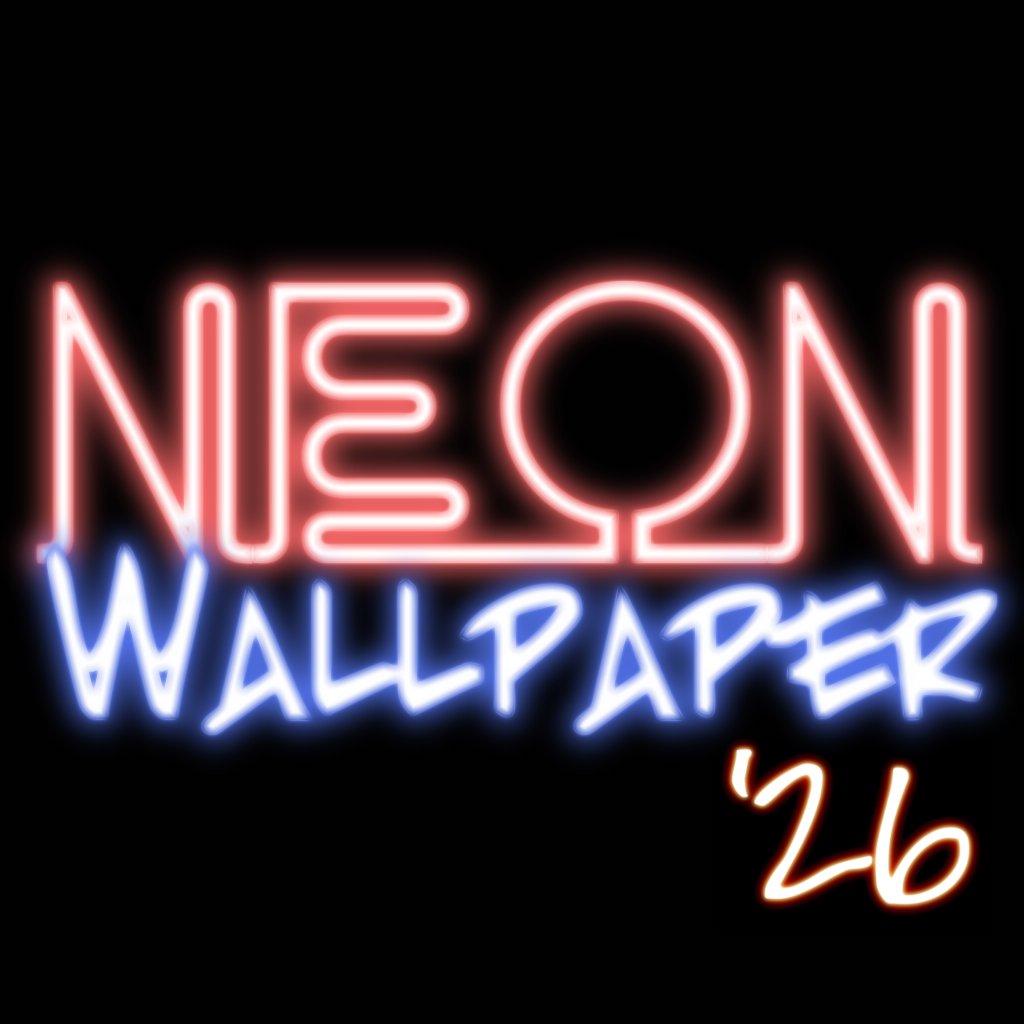
Neon Effects
Classic neon glow, backlit signs, and more. Rendered entirely on your device — instantly, with no server round-trip.
Live Photo Animation
Press and hold your wallpaper to bring it to life. Animated neon Live Photos that flicker, pulse, and glow.
Randomise Everything
Hit the slot machine to randomise colour, font, backdrop and effect — or hold any combination to keep your favourites locked.
85 Million Wallpapers
Originally launched in 2009 — one of the earliest wallpaper apps on the App Store. Now completely rebuilt for modern iOS.
New to the app? Here's how to create your first wallpaper in under a minute.
Type Your Text
Tap the text field at the top and type whatever you want displayed — your name, a word, a phrase. Use the ✕ button to clear and start again.
Pick a Colour
Swipe the Colour picker to choose your neon hue. Swipe the Backdrop picker to set the background. Or hit Randomise to let the app decide.
Choose Your Font
Swipe the Font picker to browse the built-in typefaces. Each font gives your neon sign a completely different personality.
Select an Effect
Swipe the Effect picker to choose from Neon, Backlit, and more. Preview the effect live before saving.
Hold to Lock
Want to keep your colour but randomise everything else? Tap the HOLD button under any picker to lock it in place during randomisation.
Save & Set
Tap Save to export as a still image, or Save Live Photo for the animated version. Then set it as your wallpaper in iOS Settings.
Setting as Wallpaper on iOS
- After saving, open the Photos app and find your new wallpaper.
- Tap the Share button (box with arrow), then tap Use as Wallpaper.
- Or go to Settings → Wallpaper → Add New Wallpaper and select your photo.
- For Live Photo wallpapers, choose Live Photo as your wallpaper type so the animation plays when you press and hold.
Need help or want to report an issue? Here's how to get in touch.
Contact Form
Use the contact form to send a detailed message with your device info and issue.
Open FormWhen reporting a bug, please include:
- Your iPhone model (e.g. iPhone 15 Pro)
- iOS version (Settings → General → About)
- App version (Settings → General → iPhone Storage → Neon Wallpaper)
- Steps to reproduce the issue
- Screenshots if possible